






Using Uncover with Netlas.io module
March 13, 2026
4 min read

In this short article, I will show you how to use the product search in Uncover by ProjectDiscovery with the connection of the Netlas integrated module and explain how to install and configure the utility.
Uncover is developed by ProjectDiscovery, and its source code is available in the official Uncover repository.
Uncover is a utility for finding exposed hosts. It can be used to build an attack perimeter at the foreign reconnaissance stage during a pen test. In addition, it supports automation and can be easily added to your pipeline. Netlas is built into it at the level of the tag system. These tags cover a wide range of hosts: IoT, security systems, business monitoring, and live webcams. This way, you will be able to reach all of this using Uncover. Next, I will show how this can be done.
Installing
Installing Uncover is divided into two stages: downloading go modules and directly downloading the utility.
Go modules install
If the go language is already installed on your device, you can skip this step and proceed directly to installing Uncover. I only recommend that you check the product version by entering the go version command in the terminal. The official Uncover GitHub repository says that the utility requires a version >= 1.17, but I was only able to install starting from 1.19. I recommend keeping this in mind.
I also recommend using Ubuntu OS due to the fairly easy installation process for it.
Follow these steps to install:
- Install Ubuntu upgrades by commands
sudo apt update sudo apt install - Next, you need to download Go from the official repository. Create a directory for this and enter the following command:
wget https://dl.google.com/go/go1.20.linux-amd64.tar.gz- Then carry out the installation. To do this, in the directory where the files were downloaded, write two commands:
sudo tar -xvf go1.20.linux-amd64.tar.gz sudo mv go /usr/local - The next step is to set the paths. It is produced by three commands:
export GOROOT=/usr/local/go export GOPATH=\$HOME/go export PATH=\$GOPATH/bin:\$GOROOT/bin:\$PATH - Renew the shell sessions:
source ~/.profile
After all five points have been completed, enter go version in the console and make sure you have installed Go 1.20. If everything is fine, you can proceed with the installation of Uncover.
Uncover install
Installing the utility itself is much easier. To do this, you just need to download the repository from GitHub with the following command:
go install -v github.com/projectdiscovery/uncover/cmd/uncover@latestAfter that, you will be able to run Uncover.
To check the utility’s performance, you can enter the uncover -h command.
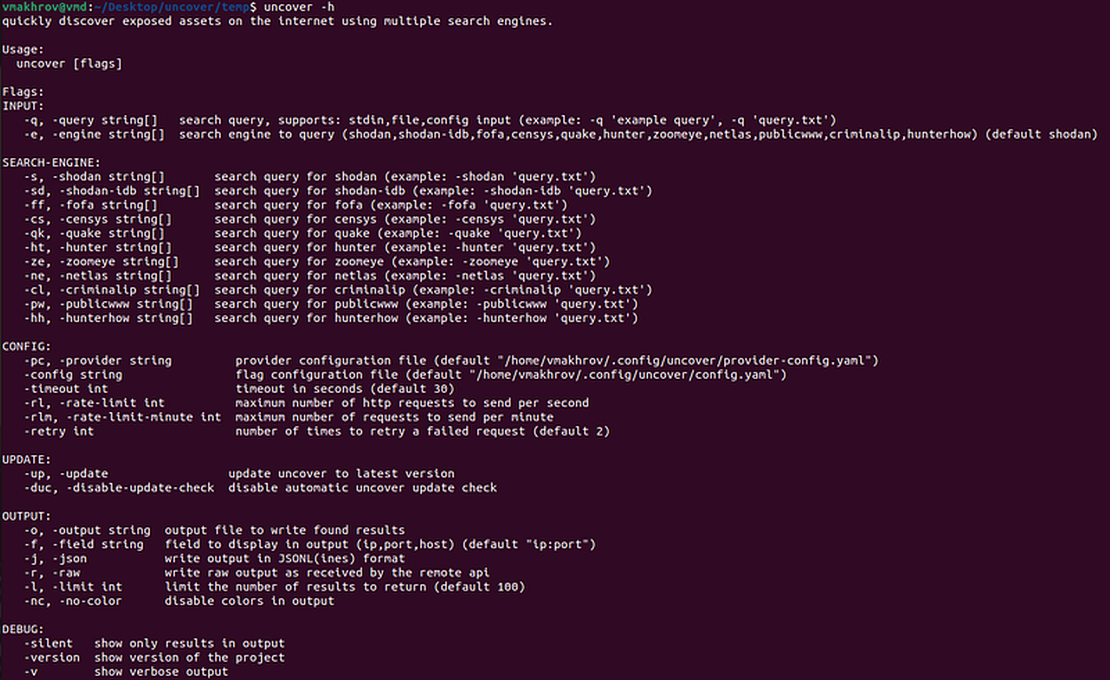
Using Uncover with Netlas
First, you need to check your Netlas.io subscription plan. The use of tags is available starting from the business plan, this should be kept in mind.
Next, to get Netlas’ results in Uncover, you need to enter your Netlas API key. This can be done in two ways:
- Place the key in the provider configuration file (
provider-config.yaml). The default path depends on your OS:- Linux:
~/.config/uncover/provider-config.yaml - macOS:
~/Library/Application Support/uncover/provider-config.yaml - Add your key like this:
netlas: [YOUR_NETLAS_API_KEY]
- Linux:
- Set the key as an environment variable in the bash profile using the
export NETLAS_API_KEY=xxxcommand.
If you do not know where to find your key, see the Netlas docs: How to find Netlas API key.
Once the key has been installed, you can start getting results from Netlas through Uncover. To do this, when starting the utility, use the -ne key before entering the request.
Let’s try to find the addresses of TP-Link routers. Uncover only supports working with Netlas tags, so you need to know how these devices are marked. However, in a particular situation, there is nothing complicated, TP-Link routers have the tplink tag.
To search for them, enter the following query:
uncover -ne tplinkThe program will start its work and return Netlas results (default setting is 100 in Uncover).
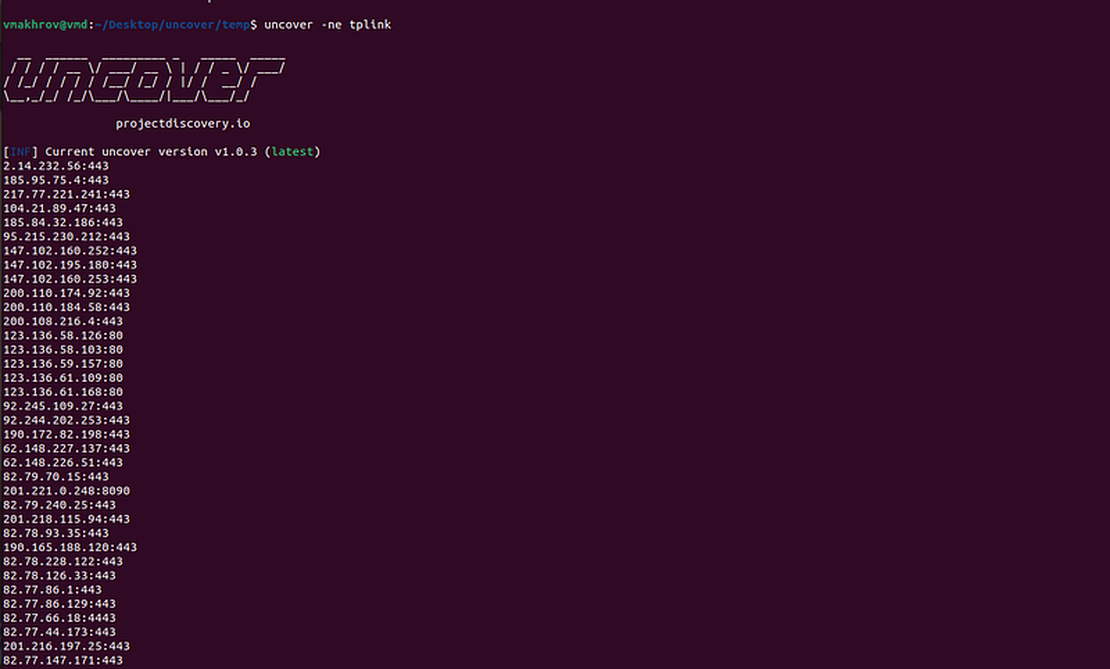
You can read more about the Uncover settings and the flags used in the official utility repository.
Where you can find tags
But how to get the list of tags? You can go to the site and see them there.

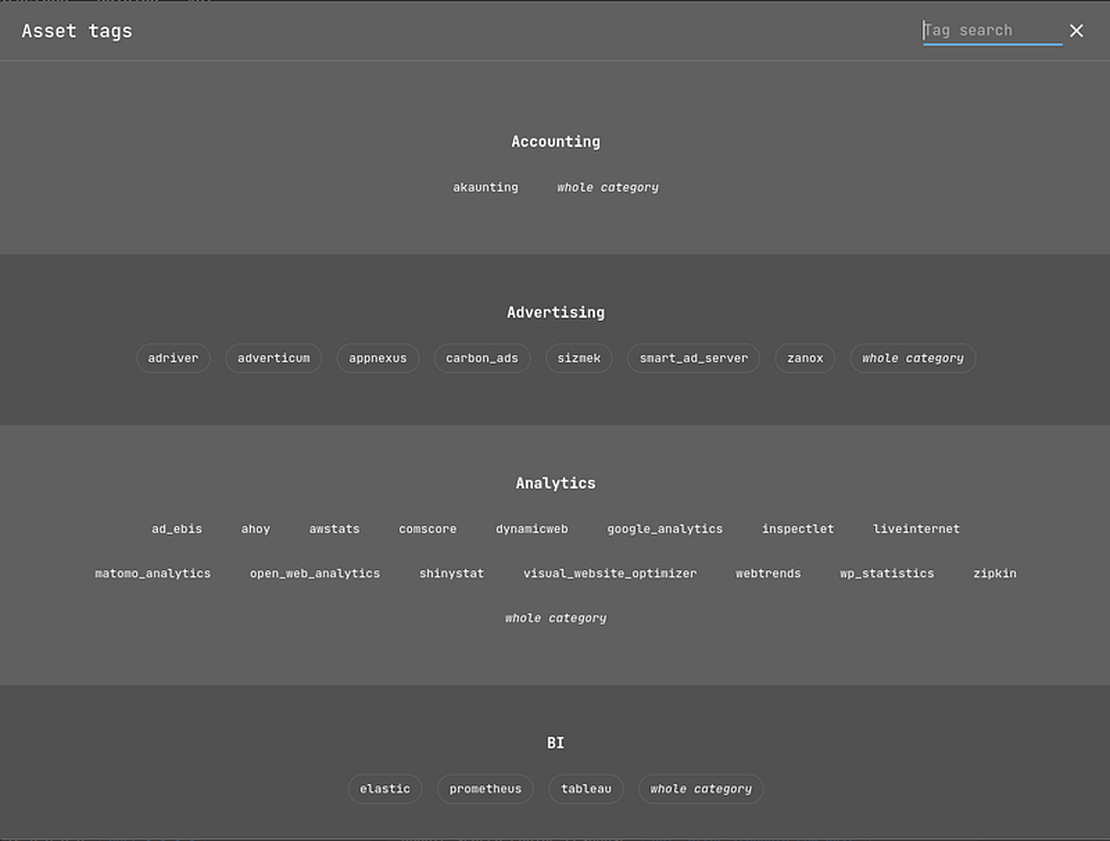
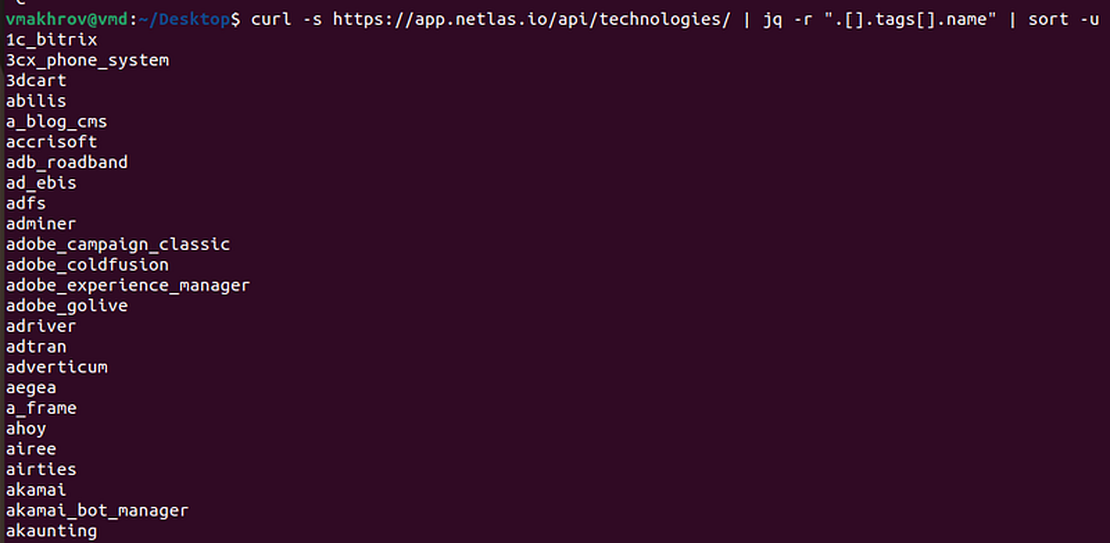
However, searching on the site isn’t the most rational solution. It will be much faster to get tags directly from the Netlas API.
This can be done with the following command:
curl -s https://app.netlas.io/api/tags/ | jq -r '.[].tags[].name' | sort -uThe command will give you a list sorted alphabetically.
Count of results
An equally important point is the number of results returned. You can set it up in Uncover, but who knows how many objects are stored in the Netlas databases? Of course, you can try to enter a very large number, but this is not the best option.
Through Uncover, it is impossible to find out the number of objects returned on request to Netlas. However, you can do this with our CLI. To do this, you need the command netlas count -d response tag.name:[tagName].
It will return you the number of objects that can be obtained by request.
If you run uncover -ne ... and get empty output, verify the key and plan first. In some cases, invalid credentials may fail quietly. A quick check is:
netlas count -d response 'tag.name:tplink' -a "$NETLAS_API_KEY" -f json
Conclusion
In conclusion, I would like to thank ProjectDiscovery for the integration. Perhaps one day the interaction will be deepened.
Good reconnaissances to you, readers!
Related Posts

January 20, 2025
Using Maltego with Netlas Module

February 7, 2025
Using Subfinder with Netlas Module

February 5, 2025
Netlas Chrome and Firefox Extensions

December 27, 2024
Using theHarvester with Netlas

December 23, 2024
Using TLDFinder with Netlas

July 13, 2024
Best Attack Surface Visualization Tools